From the Orders screen, you have the ability to create and send emails immediately for single and multiple orders.
You also have the option to configure different email templates. This allows you to send quick emails for common situations.
For more information, see Email Templates.
1) Select an order from your Orders List (or select several orders using the multi-select feature).
2) Click on the Email Button in the Toolbar
3) In the dialog box, select the Email Template you wish to use for this email.
If you have created additional Email Templates they will appear in this list alongside the defaults you see in the illustration. For more information, see Adding Additional Email Templates.
4) Under How To Send Email, you have a choice of how you wish to send this email.
• Send Immediately will send your message without delay.
• Open in Email Client sends the message to your default system email application for further editing prior to sending.
• Copy Email to Clipboard will place your email in system memory so that you may paste the message into another application (e.g., Microsoft Word)
5) When you click on OK, Monsoon will execute whichever action you have chosen using the template that you have selected
-----------------------------------------------
-----------------------------------------------
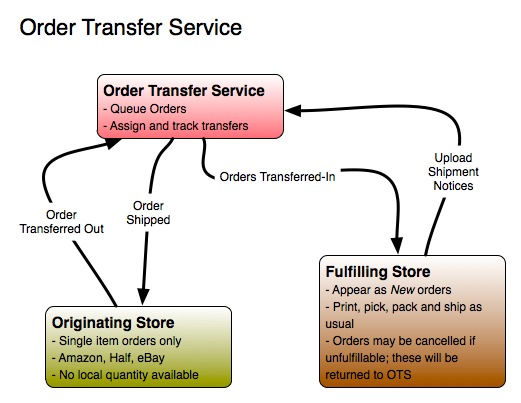
If there is no inventory available to fulfill an order in your store, it might qualify to be transferred to another store for fulfillment using the Order Transfer Service (OTS).
By and large this will be done automatically. However, there may be rare cases where an order might be manually transferred.
In most cases, there will be no need to manually transfer orders. Orders coming into Monsoon that qualify for Transfer will be automatically transferred.
Orders qualify for Order Transfer if they —
• Are single quantity.
• Do not originate on AbeBooks or Alibris.
• The order was originally placed with your store (you did not receive this order as a transfer).
• The order has not been transferred out of your store previously.
Note: If an order is in Problem Order status, it most likely will not qualify for Transfer; It will have been transferred previously or otherwise does not qualify.
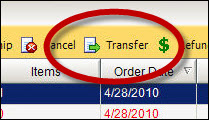
If you have an order that you would like to transfer — and the order qualifies for Transfer — click on the Transfer button.
• If the order does not qualify for transfer, the Transfer button will be disabled.
Orders that have already been transferred out of your store will have the status of In Process.
• The order will appear in the Orders List in red letters similar to Problem Orders, but it will not have the Problem Orders status.
• You will not be able to make any changes to orders that have been transferred out of your store.
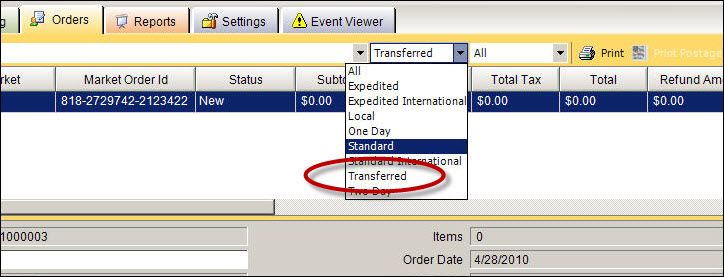
• You may browse for your Transferred-Out orders by filtering for orders that are Transferred using the Shipping Method drop-down.
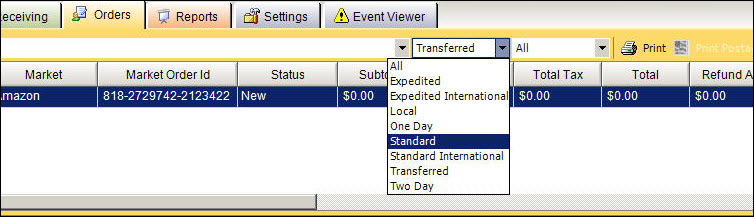
Viewing Transfers
If you have a customer service issue that requires a change to the order (e.g., the shipping address needs to be changed or the order has not shipped in a reasonable time frame) you will need to contact the Fulfilling Store
Right-click anywhere in the Order Items section of your Monsoon Orders screen, and select View Transfer.
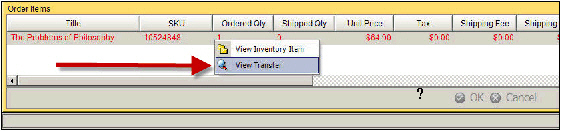
This will bring up a web page that includes contact information for the store where the order is being processed.
Monsoon Reports Tab
On the Reports tab, your Orders Fulfilled report will include all orders that have been transferred out of your store (in addition to the orders that you have shipped locally). This reflects the fact that your Transferred-out orders contribute to your marketplace fulfillment rating.
Orders that have been transferred into your store will appear in Monsoon in New status, alongside all of your other new orders. These should be printed, picked, packed & shipped like any other order.
If you find you are not able to ship a transferred order (e.g., you cannot find the item on the shelf), simply cancel it.
• There will be no Transfer button available for an order that has been transferred into your store.
• The cancelled transfer will be returned to the Order Transfer Service.
• Since this order will have come from OTS, the market will read Transferred — this means that you will not need to worry about a refund for this order.
Viewing Transfers
If for some reason you need to contact an order’s originating store, right-click anywhere in the Order Items section of your Monsoon Orders screen, and select View Transfer.
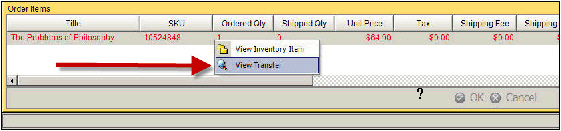
This will bring up a web page that includes contact information for the store where the order originated.
Transferred-In Orders and PRISM/WINPRISM
Only originating stores communicate online sale to PRISM. All inventory transfer considerations will be tracked and modified on the back-end by NBC system administrators and accounting.